


BEST DIY MINI EMULATION DEVICES
- nintendroid0
- Aug 9, 2021
- 12 min read
(with power versus price in mind)
Turning things into retro gaming consoles is my hobby and this is my list of the best budget devices for emulation in 2021 and, probably, for the next few years. You can save a LOT of money buying a used mini PC versus new but also keep your expectations in check. Number 1 on this list is the BEST device I’ve discovered so far for price versus power. There are more powerful devices, as well as less powerful in this size but, in my opinion this one is the best value. This can emulate “up to**” PS3 and Switch titles, plus anything older! As with any device, performance will depend on the game being emulated but, I’m VERY impressed with it so far. **up to – means it will emulate some titles well but definitely not all. Some PS3 games are full speed with the right settings, as well as Switch but Switch has even fewer titles that will be full speed on this. Realistically, Wii U is the top end if you’re looking for flawless emulation.
Check out the specs for each device and MAKE SURE when shopping for one of these that you are certain the model you are buying EXACTLY matches the specs listed for each device on the list here. There are many variations of each of these devices with a wide range of processors. The processor (and graphics, if listed) are the most important features to look for when shopping. The amount of storage and RAM will vary as well but these aren’t as important as, you can always add more or upgrade later on down the road. The processor (e.g. Ryzen 5 Pro, Intel i5, Intel Celeron) are what to look for and specifically the models and speeds listed. (i.e. 2400G [not GE] @3.6Ghz, Celeron 2955U @1.4Ghz, i5 6500T @2.4Ghz) So, refer to the picture chart just below to match the specs EXACTLY on the processor. Also, make sure what you are buying INCLUDES the AC power adapter or you will have to buy one separately.
Below the chart I will go into very specific details about each device and anything you should consider for each one, including accessories, or things to be aware of. I would recommend Retrobat for Windows and Batocera for the Chromebox. If you have any questions or concerns not covered in this article, please post in our Facebook group or message me at: nintendroid@mail.com and I will try my best to answer to the best of my knowledge.
Click to join the Nintendroid Facebook Group (answer all 3 membership questions)
#1. HP ELITEDESK 705 G4 MINI with RYZEN 5 Pro 3.6Ghz and VEGA 11 graphics
Again, there are MANY variations of the 705 G4 Mini, so MAKE SURE you are getting the one with the RYZEN 5 Pro 2400G (not 2400GE) at 3.6Ghz with VEGA 11 graphics. There are other model variations with Ryzen 5 at 3.2Ghz, 3.4Ghz, and Vega 8 graphics and even a 3.6Ghz Vega 11 2400GE (lower power consumption) so, look VERY carefully when shopping for one! I cannot stress this enough! Official HP site showing 705 G4 variations (you want the “65 W 2400G model): https://support.hp.com/us-en/document/c06101574
Now that that’s out of the way, let’s dig into the specs and details!
SPECS:
Ryzen 5 Pro 2400G (not 2400GE) at 3.6Ghz base (up to 3.9Ghz)
M.2 SSD slot as well as 2.5″ HDD expansion bay, both.
2 PC4 DDR4 RAM slots (up to 32GB)
FLEX IO Option on rear for HDMI, VGA, USB C optional adapters.
M.2 PCIe NVME expansion slot for WiFi/Bluetooth cards
6 USB 3.0 ports plus 1 USB C port on front
Currently these, used, go from anywhere between $250-$450 average on eBay and will only drop in price over time. There are MANY models of the 705 G4 Mini but only ONE with the 3.6Ghz Ryzen 5 Pro 2400G and Radeon 11 Graphics. Again, I would pass on the 2400GE as it uses less power for the CPU/GPU and may not have the same graphical capabilities as the 2400G. There is also though, a slightly larger model with the 2400G and a DVD optical drive/PCIe GPU slot (and are usually a little cheaper) so, if you want to save a little more money, or add a low-profile GPU later, go for the slightly larger model. There is also a, more powerful, 705 G4 with the 3200G and would have better PS3 and Switch performance, though still not all titles. 4000 and 5000 series Ryzen “G” models are the best for PS3 and Switch emulation.
These were released in 2019 and should come with a factory HP warranty until 2023, even if you buy used. Keep in mind that most of these will NOT include the WiFi/Bluetooth card nor the HDMI out flex io adapter so, while they aren’t necessary, look for these extra features if you don’t want to have to add them later yourself. (You can add these parts yourself or can use adapters) You can use USB adapters for the wireless features (WiFi/Bluetooth) if you don’t feel comfortable adding the wireless card inside, and any “Display port to HDMI” adapter, or cable, will work for both audio and video output through the display port to your HDMI input.
OPTIONAL ACCESSORIES
If you want to add the HDMI Flex io adapter, check for them on eBay. I picked one up for $12 shipped but they may be up to $20-$30. Just make sure it is the correct shape and size with the tab on the top where it comes through the back of the case. It has two M2 screw holes where it secures to the motherboard and are the same screws used to secure the M.2 SSD and wireless card. Note that, if you buy one separately, it probably won’t come with the screws. I will post a pic of one here:
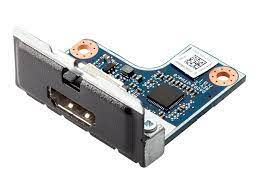
OPTIONAL HDMI FLEX IO ADAPTER FOR G SERIES HP MINI DESKTOPS
The WiFi/Bluetooth card used in this machine is the “Intel 9260NGW” AC card. It is an M.2 NVME slot compatible card with “A/E” key (three notches). The double notch cards will NOT work with this board even though the slot looks like it’s a double notch (or “E key”) only slot. You can find them on eBay for about $10 shipped or order directly from HP (for over $60) brand new. The antennas should come with your Elitedesk already inside the case but before you buy the wireless card, make sure they are there. They will be inside against the case right near the SSD and may be tucked under the motherboard. You will need to attach the two wires to the card and they should be labeled 1, and 2. Attach them securely to the card in the proper configuration. I will picture the WiFi/Bluetooth card below.
NOTE* You WILL need Bluetooth if you plan to use wireless game controllers! So, at the very least, you will want a USB adapter for Bluetooth like the “ASUS BT400” model usb Bluetooth adapter if you opt out on the wireless card (pic below Chromebox on down the list).
The Elitedesk 705 G4 also has several options for internal storage. Most will come with a 256GB M.2 SSD attached to the motherboard and there is also a 2.5” hard drive expansion caddy inside. I’ve seen some of these that DO NOT include the metal hard drive caddy housing nor the small ribbon cable that attaches the hard drive enclosure to the motherboard. If the listing you are looking at does not mention nor show it in the pics, ask the seller if this is included inside the case. You don’t necessarily “need” it but, if you want to add another drive for storing games or content without having to use external USB drives, this is a VERY nice accessory to have. You can purchase the hard drive caddy with the cable included for about $20-$30 on eBay if yours does not include it. The caddy attaches to the motherboard with two “T15” screws.
That’s about everything you need to know or be aware of with the Elitedesk 705 G4. It’s an amazing device in a very small package and works extremely well, not only as a Windows PC but also, as one of the best emulation devices ever made!
Now, if you don’t need quite as much power as the G4 offers, or, if it’s out of your budget, let’s take a look at the number 2 option on this list that still packs some serious power into a small package.
#2. HP ELITEDESK 800 G2 MINI with Intel i5 6500T and Intel HD530 integrated graphics
Like the 705 G4 above, the Elitedesk 800 G2 also has many variations of what’s “under the hood” inside the case. When shopping for the 800 G2 model MAKE SURE you are getting one with the Intel i5 6500T processor. This processor includes integrated Intel HD530 graphics and, while not as powerful as a Ryzen processor with Vega graphics, this chip still has the power to emulate PlayStation 2 games very well, plus anything older.
Here are the specs for the 800 G2 that is best for emulation: SPECS: Intel i5 6500T @2.4Ghz
Internal 2.5” hard drive bay (compatible with SSD or HDD)
2 PC4 DDR4 RAM slots (up to 32GB)
Rear Display Port/VGA outputs (use Display port to HDMI cable or adapter to connect to TV for audio/video over HDMI)
M.2 NVME PCIe slot for wireless cards (WiFi/Blutooth)
6 USB 3.0 ports plus 1 USB C port on front
At the time of writing this article, the Elitedesk 800 G2 with the specs listed above can be found for about $120 to $150 on eBay. Again, just make sure the one you purchase matches the specs listed for the processor. Like the G4, the RAM and storage options will vary and can be upgraded later on. Just keep in mind that you WILL need Bluetooth if you plan to use wireless game controllers so, either buy one that already has Bluetooth or add a USB adapter like the “ASUS BT400.”
I cannot recommend specific internal parts for this model as, unlike the other two on this list, I’ve never owned one. I am basing all of the information for the G2 in this article on the diligent research I have done for this specific model and other setups with the exact same hardware inside. I am confident in its capabilities as an emulation machine for up to PlayStation 2 and anything older.
I would HIGHLY recommend upgrading the internal hard drive to an SSD. ANY 2.5” SATA SSD will work in this machine but my favorites are the “Samsung EVO” series Solid State Drives. Bootup and overall performance will be increased significantly with an SSD versus the conventional mechanical hard drives. If budget is a limiting factor here, consider storing your games on an external USB drive. For gaming, ANY USB 3.0 external drive will work well.
If you want to add any accessories or parts to this model, just do your diligent research into what parts will work with this machine. If you need to, contact HP support for specific models/part numbers then, look for them cheaper somewhere else as HP parts are extremely overpriced. You can find the same exact name brand model parts elsewhere and save a lot of money. Comparable mini PC’s are the Lenovo M700 with i3 6100T and the M700 with i5 6500T. There are also Dell “Optiplex Micro” models with comparable specs. The intel 6100T is about the lowest you can go and still have pretty great PS2 emulation performance.
Finally, let’s take a look at the last option on the list here that, while it is the cheapest device and takes a little more initial work to setup for emulation, is still one of my all-time favorite options for making an excellent retro gaming console.
#3. ASUS CHROMEBOX CN60 with Intel Celeron 2955U and Intel HD integrated graphics
Similar to the other options on this list, there are also several models of the ASUS Chromebox. The Chromebox CN60 model with the Intel Celeron 2955U processor is the first model ASUS released and, since the Chrome operating system is no longer supported on this specific model, they can be found for a VERY reasonable price! The best part about the Chromebox is that the Chrome operating system can be removed so that you can use your own. Batocera is what I would recommend the most for these as it will offer the best user interface for emulation without the need for upgrading any parts inside. You could also install Windows 10, Linux, or a few others but each has its own set of obstacles to overcome so, read below, and trust me when I say that, Batocera is the BEST option for using the CN60 as an emulation console. (Your OS options will vary if you go with a newer, more powerful Chromebox, with a different processor.)
SPECS:
Intel Celeron 2955U @1.4Ghz
M.2 SSD slot for storage (16GB stock)
2 PC3L 12800 DDR3 RAM slots (2-4GB stock and up to 16GB)
Rear HDMI and Display Port outputs
M.2 PCIe NVME expansion slot for WiFi/Bluetooth card (included as stock but read note* below)
4 USB 3.0 ports plus 1 full size SD card port on side
Now, the major caveat with these Chromeboxes is that you MUST first flash the firmware on these so that you can install another operating system. There are several tutorials on YouTube for how to achieve this and, it’s not as complicated as it may seem. It does require that you already have a Windows PC and a USB keyboard and mouse as you will need them to setup the Chromebox and flash the firmware. You will also need to “burn” the Batocera operating system to a USB thumb drive or SD card using the free Balena Etcher software in Windows. My favorite tutorial for flashing the firmware on Chromeboxes is by “Danimationstips” here: https://www.youtube.com/watch?v=6t4upBIKxUo (Use this as more of a “guide” and, use the commands from the MrChromebox website listed in the video as, the commands used in the video are slightly outdated.)
Don’t worry, you aren’t going to mess anything up if you make any mistakes during this process. It is designed so that errors can be corrected and you can ALWAYS reinstall the Chrome OS. Just make sure you backup the firmware during the flash process if you ever want to go back to Chrome. (optional)
Once you have the firmware flashed on the Chromebox you are ready to install Batocera (or any other operating system). A great tutorial for installing Batocera to the internal storage can be found here (must use ethernet): https://www.youtube.com/watch?v=F1GshnAYrII
NOTE* YOU WILL LOSE WIFI/BLUETOOTH WITH BATOCERA so, during initial setup you will have to use the Ethernet port on the Chromebox to complete the Batocera install. The best way around losing Bluetooth later on is, to add an “ASUS BT400 USB Bluetooth adapter.” This is the ONLY way to use wireless controllers on this device with Batocera or, you can use wired USB controllers like the Xbox 360 wired controllers.

THESE WILL ALSO WORK ON THE OTHER PC’S IF YOU DON’T GET ONE WITH THE WIRELESS CARD IN IT
Once you are past the initial setup and have downloaded your game boxart, you will no longer need internet on this device so you won’t have to worry about WiFi.
Protip: Now, you CAN install Windows 10 to the Chromebox and use something like Retrobat instead, if you want to, without losing WiFi/Bluetooth, as Windows has the proper drivers for the wireless functions BUT…. the drawback is that the SSD and RAM MUST be upgraded first in order to use Windows on these. The stock 16GB SSD that comes with these is simply not large enough to use Windows once it begins to install Windows updates and, the 2-4GB of RAM that come with these, stock, is just not really enough for running Windows 10 optimally. If you choose Windows over Batocera, I would recommend an M.2 64GB SSD and it MUST be one of the short ones. When looking for M.2 SSD’s you will notice that there is a short, and a long model. The ASUS CN60 will ONLY work with the short models and still be able to secure it in place with the M.2 screw. I would also recommend at least 8GB of ram for Windows 10 on these. These use “PC3L 12800” DDR3 laptop RAM if you want to upgrade.
If you stick to Batocera you don’t need to worry about upgrading the storage or RAM and will only need the ASUS BT400 USB Bluetooth adapter if you want wireless game controllers. Your games can be stored on either an SD card or a USB drive (or even the internal storage but space will be limited there).
These are the very BEST and, most cost-effective option I have found for being able to emulate up to Gamecube (at native resolution), PSP, Dreamcast, and anything older while having sufficient power to upscale your games (excluding Gamecube) to HD resolutions. This will allow you further upscaling compared to ANY Raspberry Pi or Android device in the same price range and handles N64 emulation perfectly where the others struggle with some, or even all, N64 titles. This will run EVERY N64 title and, while it won’t emulate EVERY Gamecube title, plenty of the best GC titles run well.
The BEST wireless controllers to use with the Chromebox and Batocera are the PlayStation 3 controllers. You can use ANY wireless Bluetooth controller but, I’ve found, that the PS3 controllers have the best compatibility with all the emulators in Batocera. I’ve personally tested Xbox One, ASUS TV500 BG, iPega 9083S, Gamesir G4, and PS4 controllers with the Chromebox and, the PS3 controller was my favorite by far though, they ALL worked pretty well. I have even tested the controller from a distance of 10 meters, or 30 feet, away from the Chromebox without any input lag or dropped connection at all!
The combination of the ASUS Chromebox with the ASUS Bluetooth adapter is simply amazing for the price. I really do enjoy it as an emulation console and still use it even though I have since upgraded to the G4 above. It’s simply perfect for what it does!
To summarize, ANY of these devices would serve you VERY well as an emulation console and ALL of them are more powerful than ANY Raspberry Pi or Android box to date, including the Nvidia Shield! Even the Chromebox handles Gamecube titles that the Shield won’t even load in the Dolphin emulator! The other two rival even some gaming PC’s, with the 705 G4 having the ability to run even modern PC titles well! With the Ryzen processors you can run many modern games without the need for a dedicated GPU (graphics card). If you’re interested, just search YouTube for “Ryzen 5 2400G gaming” and you will see many examples of what kind of modern games are playable with this hardware. Or, for the G2, search “Intel HD530 gaming.”
Again, if I’ve forgotten anything or, you would like to know any more details about any of the devices listed above, post in our Facebook group or contact me at: nintendroid@mail.com and I will try my best to answer any questions you may have.
Nintendroid Facebook Group: https://www.facebook.com/groups/nintendroid
Thanks for reading and, as always, HAPPY GAMING!


https://www.shadowfightmodapk.com/