


Everything you need to know about Controllers for Android Devices.
- nintendroid0
- Oct 16, 2019
- 8 min read
A Guide to gaming on Android and Fire TV devices.
In this article I am going to talk about controllers for use with TV based Android Devices and cover using them with mobile devices as well. I’ll cover the most common and popular controllers, go over the pros and cons of each and then share my recommendations. Hopefully this will help you in choosing the best controller to fit your needs, so, let’s jump right in!
There are two types of controllers used with Android and Fire TV devices. The first, and most common, is Bluetooth and the second uses what is called “WiFi Direct.” Only a handful of devices use WiFi direct so you will probably want a Bluetooth controller. I will cover the devices that use WiFi direct below. While WiFi direct controllers are the absolute BEST for retro emulation, Bluetooth controllers work on far more devices and are generally better for modern games.
Left: Amazon WiFi Direct Game Controller Right: Gamesir T2 Bluetooth Game Controller

Amazon controllers ONLY work on 2nd generation sticks and the Fire TV boxes. (They DO work on Shield as well with some patience)
Nvidia Shield Controllers Left: 2017 and current Bluetooth Shield Controller Right: 2015 WiFi direct Shield Controller

Most devices will use Bluetooth and the others mentioned above are the only devices that I’m aware of that use WiFi Direct. WiFi Direct controllers do have one major advantage over Bluetooth and this is the “latency.” Also known as “input lag,” latency is the time between when you press a button and when the action takes place in your game. All controllers have varying degrees of input lag with some being worse than others. In my experience, the WiFi Direct controllers have a lot less input lag compared to Bluetooth but the more expensive name brand Bluetooth controllers have less input lag compared to cheaper ones. IF you can find one, I HIGHLY suggest the 2015 model Shield controller over the newer model.
Your television can also be a factor in the mix when it comes to input lag. Most televisions have a setting in their menu to put the TV into game mode. This may brighten or darken your picture depending on the model but will greatly improve the latency when you are gaming on an Android or Fire TV device. Use your television’s remote to open your settings menu and look for display options and a setting for “game mode.”
Here are a few popular controllers with some pros and cons. I will list them in order of best to worst from my experience. I own and have used all the controllers pictured. On down, I will list other controllers that, while I haven’t tested personally, do have great ratings and reviews.
First, let’s start with the Amazon Fire TV game controller that uses WiFi direct, then I will list Bluetooth controllers. Again, the Amazon Game Controllers are ONLY compatible with Fire TV boxes and the 2nd generation Firestick officially, but will work with the Shield. If you have ANY other Firestick (like the 4K, Firestick Lite, or Cube), or another Fire TV device or Television, you will need a Bluetooth controller or the Amazon Luna controller. This is by far the best controller for Fire TV if you have a box or 2nd gen stick.

Uses WiFi Direct.
Extremely low level of input lag
2 AA Batteries
Offset Analog Sticks
Alexa Voice Button
Headphone Jack
THE BEST ALL-ROUND CONTROLLER FOR ANY ANDROID DEVICE ARE THE NEW XBOX CONTROLLERS.
It’s up to you how much you want to spend as the Xbox One controllers are usually cheaper but the Xbox Series X/S model controllers have a better D-Pad. Either way, you can’t go wrong with them as they have great range, feel great in the hands, and are highly durable and well made.
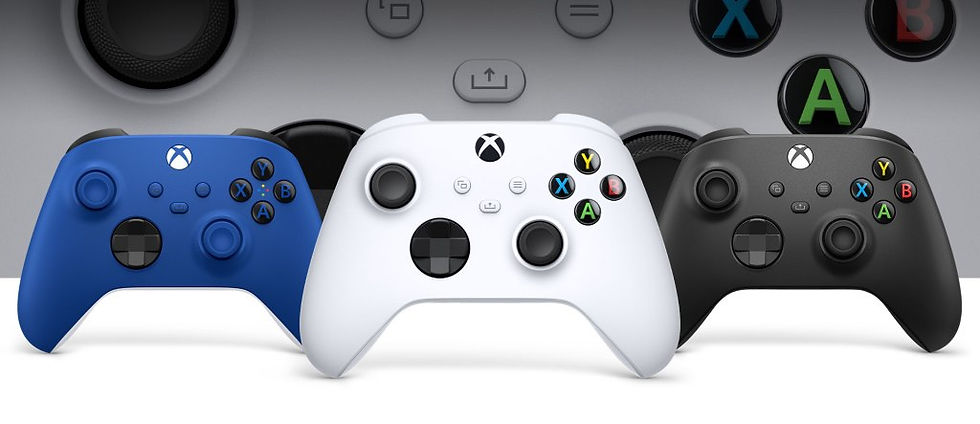
Xbox Series X/S Controllers in multiple colors.
**NOTE** – If you go for the Xbox One controller, MAKE SURE it is the model “1708” with Bluetooth. The first generation controllers did NOT have Bluetooth. You can tell by the plastic around the Xbox Logo. If it looks like it’s a separate piece of plastic and shiny it most likely the first gen WITHOUT Bluetooth. The newer models with Bluetooth will be all one piece of plastic around the Xbox logo and the rest of the face of the controller.
They even make phone clips for the Xbox controllers to use with your mobile phone and are great for gaming on the go or using the Game Pass app on your mobile (though a bit top heavy). If you want something for your phone, also look into “telescopic” controllers like the Razer Kishi or similar models. While the Kishi is expensive, there are many models for all budgets like the iPega 9083S.
Uses 2 AA batteries or rechargeable battery pack (sold separately). Rechargeable AA batteries are best since you won’t need to plug into USB if the controller dies. 3000MaH or higher are recommended.
Sturdy plastic and doesn’t feel cheap.
Great response time and low latency.
Has menu button that is REQUIRED for Xbox Game Pass app. (other controllers may or may not have a menu button that works with Game Pass)
Available phone clip (sold separately)
Best for Windows PC as well (will need Microsoft Xbox controller USB wireless adapter if your PC doesn’t have built-in Bluetooth.)
Also works with ANY Bluetooth device.

Xbox controller with official phone clip.

Razer Kishi mobile controller.
Next, here’s one of the better known brands of Bluetooth controllers you can buy, though they seem to be making less models these days. This is the “GameSir G3S” Bluetooth controller. It’s usually a little cheaper than their other models and is an excellent controller! This controller works with both Android and Windows and has great range. Just be sure to get the G3 ”S” model as other G3 models without the S are not Bluetooth.

Bluetooth 4.0 (also works with 2.4Ghz dongle)
Rechargeable
Also works wired
Inline Analog Sticks
Backlight option for buttons
Select/Start Buttons
~20 hour battery life
Acceptable levels of input lag
Excellent range
This is one of my favorite Bluetooth controllers as well and, although it is now discontinued, you can usually still find brand new in the box “old stock” for these. These were originally released for the Nexus Android TV boxes. The Nexus was created in a partnership with Google and ASUS and was the very first TV device with official Android TV OS. This is the ASUS TV500BG. You can usually find them pretty cheap and are almost as good as the Xbox controllers.

Bluetooth 4.0
Back and Home buttons
Uses 2 AA batteries
Inline Analog sticks
Excellent range
Acceptable levels of input lag
Excellent D-Pad
Finally, the last controller on the list of those I’ve used is the “T3 Bluetooth Controller.” It goes by many names as it’s a generic no-name brand. These are $10-$15 USD and aren’t bad if your device is close to the controller. These are best used with phones and tablets as the range on these isn’t great.

Rechargeable
Select/Start Buttons
Inline Analog sticks
Short range
Short battery life
High levels of input lag
Susceptible to interference
I have used and own all the controllers listed above as well as a couple of others. My favorite Bluetooth controllers are Xbox controllers. I prefer WiFi direct if it’s available but for all round, Xbox controllers can’t be beaten and have a dedicated menu button for modern Android games and Xbox Game Pass. Below I will list several other controllers which are all great based on ratings and reviews.

The GameSir G4S has been the highest rated Bluetooth controller for a very long time now. It’s very versatile as it’s great for mobile devices, TV devices, and PC’s. I would recommend this one over all others based on ratings and reviews. It may be hard to find now so my second choice would be the 8bitDo SN30 Pro Plus.
The 8bitDo SN30 Pro Plus is the next highest rated controller that isn’t discontinued. I would recommend this controller if you can’t find the Gamesir brands based on ratings and reviews.

Seelseries Stratus DUO
Works with Windows and Android.
Both 2.4ghz wireless with dongle and Bluetooth without dongle so works on many devices. Highly rated, quality built.

Another highly rated brand of controllers is 8Bitdo. This is the 8Bitdo SN30. The ratings and reviews for these are excellent and there are many different models based on the types of games that you play. For most games and the highest compatibility, you will want the SNS30 model with dual analog sticks.

Here is the 8Bitdo “N30” controller and has a more NES style look that still has dual analog sticks.

And finally, the 8bitdo NES controller. If you buy one of these make sure you get the Bluetooth version and not the one made for the NES Classic consoles. They are not the same.

Madcatz C.T.R.L.R (shown with optional phone clip)
These controllers can use Bluetooth or a 2.4Ghz USB dongle and have various settings to change the “mode.” So it can be used as a game controller, mouse, or used with other Bluetooth devices like a PC. A very versatile controller that works pretty well and has good range for its price point. (Usually around $15-$25 on eBay or at Walmart.com) Uses two AAA batteries.
Things to consider when you are shopping for a gaming controller.
Decide whether or not you would prefer a rechargeable controller or one that uses batteries. Rechargeable controllers can be great but if you only have one and are in the middle of a game when it dies, you will have to wait for it to charge versus swapping batteries.
Make sure the controller you choose has enough buttons for the types of games you will play. If you are only playing original NES games you won’t need triggers, shoulder buttons, or analog sticks. If you want to play Playstation games, N64, or modern Android games you will want dual analogs, shoulder buttons, and triggers on your controller.
Start and Select buttons are VERY convenient for all types of games. Controllers that don’t have start and select buttons but use home and back buttons instead may have compatibility issues with some games or emulators. While most emulators allow you to map the controls in the app’s settings, not all controllers work well when using back and home buttons in place of start and select.
A MENU button is absolutely NECESSARY for Xbox Game pass and, while some Android games will work without it, it can be a hassle if your controller doesn’t have one.
Input lag and range are important. If your controller doesn’t work well more than a few feet from your device you won’t be able to game well. Also, if there is a lot of input lag with your controller you won’t be able to play the games accurately.
Set your TV to game mode if available in settings.
If you buy a controller that you’ve never tried before or have no experience with and can’t base your purchase on reviews, make sure there is a return policy if it doesn’t work well or doesn’t work out for what you need it for.
Super Nintendo games require at least 2 shoulder buttons (L1 and R1)
If you have a PC or other devices, purchase a controller that can be used on all of your devices. If it comes with (but does not REQUIRE) a USB adapter, even better as the adapters are more suited for use with PC.
If you already have a Playstation 3, 4, or Xbox One controller lying around, try pairing it with your device. You may be surprised to learn that it works!
In conclusion, get what you like and what works best for you. I have been gaming for many years on Android devices and can only suggest what I’ve used, owned, or am familiar with. As with anything, you get what you pay for with controllers. Cheap ones may work but how well they work is something to consider. If you want accuracy and low input lag spend the extra money and get a good controller. Your experience will be much better. If you get a bad controller that is inaccurate, with a short operating distance, or prone to interference, gaming won’t be fun.
I hope this helps you when you are choosing a controller and, as always, happy gaming, and happy streaming!
https://www.shadowfightmodapk.com/